No user accounts required for your recipients -
Start your 7-day free trial now!

A practical step by step guide for creating professional digital certificates using MS Word and custom design tools.


Digital certificates are widely used by education providers such as training centers and universities. MS Word is often chosen because it is easy to use and allows quick layout adjustments without advanced design knowledge. It is suitable for small certificate batches or one-time creations, although it has limitations related to manual work and security.
Key points:
In this article, we will walk you through all the basic steps that you need to take, to create a digital certificate using Microsoft Word.
A clean and well-designed background forms the visual base of your certificate. It is best created in design tools like Canva, Figma, Photoshop or ChatGPT image functions instead of MS Word. These tools offer better control over branding and layout.
Essential steps:
Design recommendations:
Once the background is exported, it is ready to be imported into MS Word for further customization.
You can use a blank certificate background from the Virtualbadge.io template library as a placeholder image.
Once the background design is ready, it can be added to MS Word so the certificate layout becomes editable. The goal is to place the background as a fixed element while keeping text areas flexible.
Steps to insert the background:
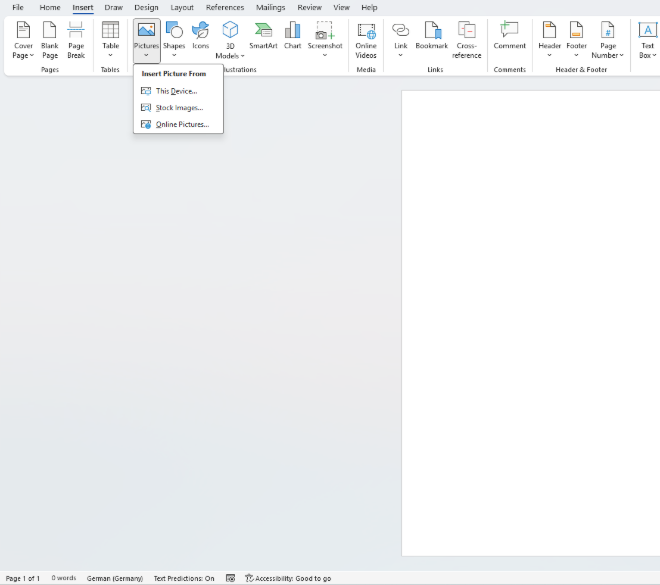
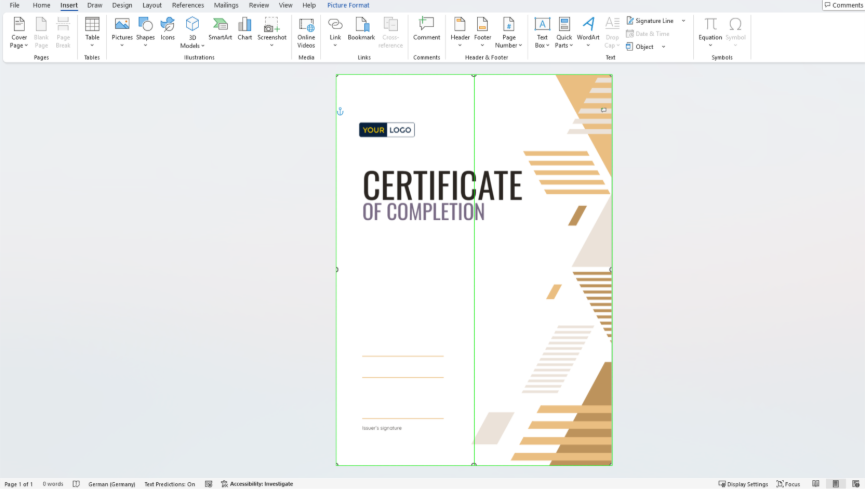
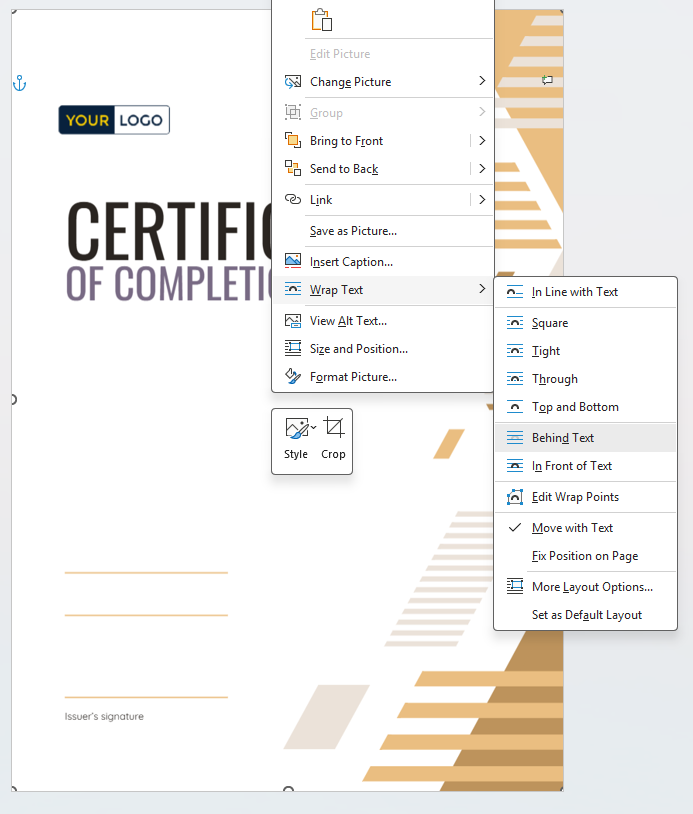
Recommendations for clean layout results:
At this stage, the certificate has a visual base and is ready for text elements such as names, course titles and signatures.
Text boxes allow you to place certificate information precisely where it belongs. They help structure content cleanly and ensure that each element stays aligned.
Elements usually included in a certificate:
Steps to add text boxes:
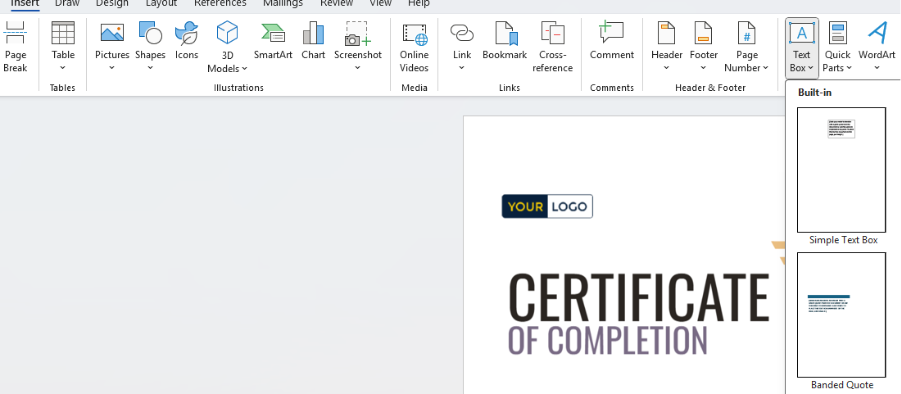
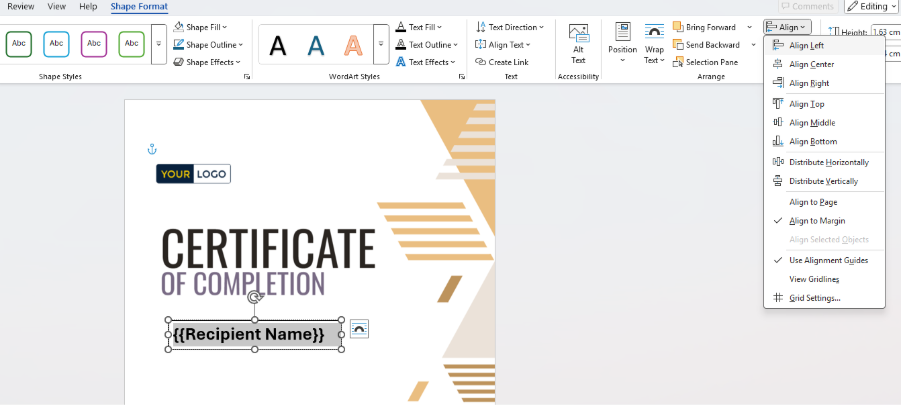
Formatting tips for a professional appearance:
Once the layout is complete in MS Word and all text boxes are in the correct position, the certificate needs to be exported as a PDF. This ensures a consistent output and makes it easy to store or share the file. Many organizations also upload the Word template to Microsoft Teams so that multiple team members can access, edit or reuse the certificate design.
Steps to export:
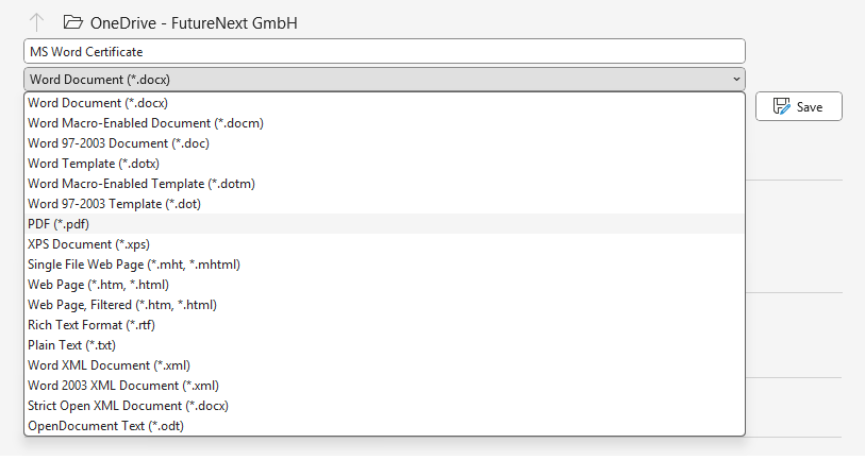
Recommendations for clean PDF output:
Why cloud storage is useful in this context
Important note. Standard PDF certificates remain vulnerable to unauthorized edits. This makes authenticity verification essential. For further insights, the article “How to Protect Your Certificates from AI Fakes” provides useful context on modern security risks and validation methods.
Once saved, the PDF certificate is ready to be distributed, uploaded to learning systems or archived. If certificate volumes increase, manual PDF creation becomes inefficient, and automated solutions provide significant advantages.
Using MS Word works well for simple or occasional certificates, but many organizations eventually look for a faster and more reliable way to issue digital credentials. Automated systems reduce manual work, eliminate formatting errors and increase security. Virtualbadge.io offers these advantages while still allowing users to keep their own design. If a certificate was created in Word, the background can simply be exported as a PDF or image and uploaded to the platform as a template. You can also try our certificate generator, where you can design your own certificate for free
Key reasons why teams switch from Word to automation:
Working with templates:
Security and authenticity:
The SRH University Success Story demonstrates how educational institutions streamline certificate distribution by automating creation and delivery. It shows how teams avoid repetitive formatting steps and reduce time spent on administrative tasks.
Ready to simplify your certificate process?
Book a free demo and our team will show you the possibilities with Virtualbadge.io.
* You can find the organisation ID in the URL when you access your LinkedIn Company page as an admin.


Marketing

Dec 8, 2025

6 min
A note on how we write: we use AI tools to help with research and drafting. Every article is then reviewed, edited and fact-checked by someone on the Virtualbadge.io team before it goes live. The final word is always human.

Use Virtualbadge.io to design and send digital certificates that create trust - in less than 10 minutes.
%20(1).svg)